

SMS Command Sets
What is it
An SMS command set is simply a list of commands you save in advance so you can send them to your tracker in just a few taps.
Instead of typing commands every time, you create them once - and reuse them whenever needed.
How it works
You create a set inside the app:
- give it a name (e.g. TK905)
- optionally add a description
- add SMS commands:
- the command text
- a clear name (e.g. “Factory reset”)
After that, all your commands are always at hand.
How to create a set
- Open Mobile Dispatcher
- Go to Tracker Management
- Find the Command Sets tab
- Tap “+”
- Enter a name (and optional description)
- Add commands (using “+” inside the set)
- Tap Save
Done — your set is ready.
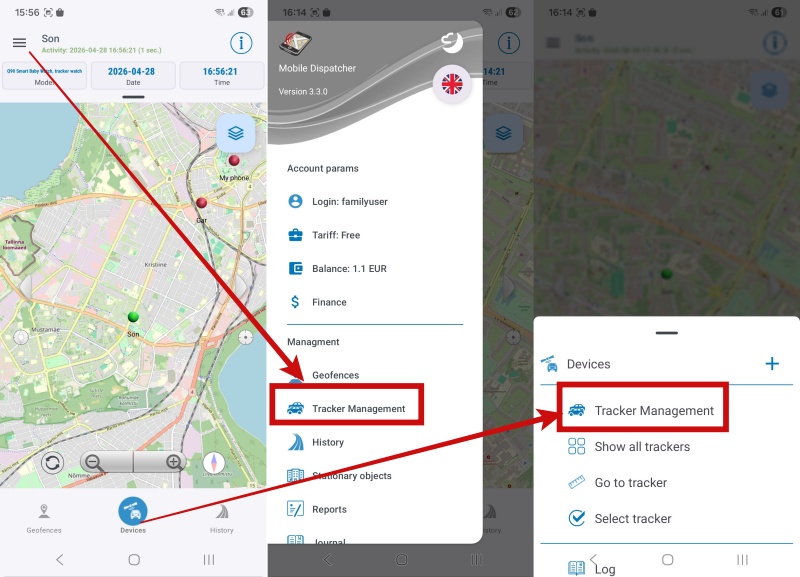
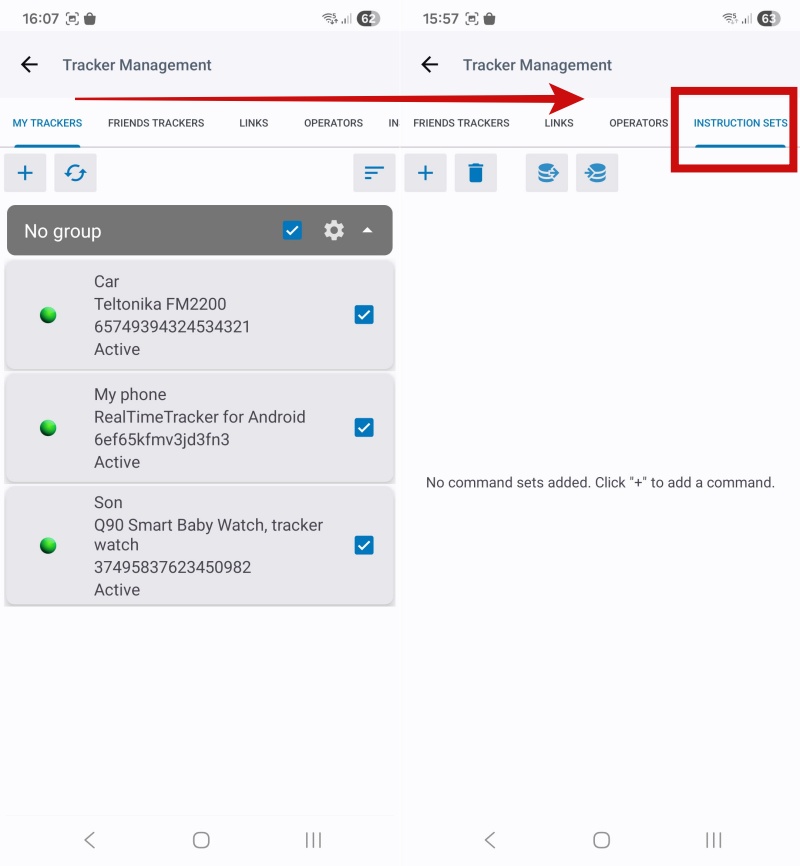
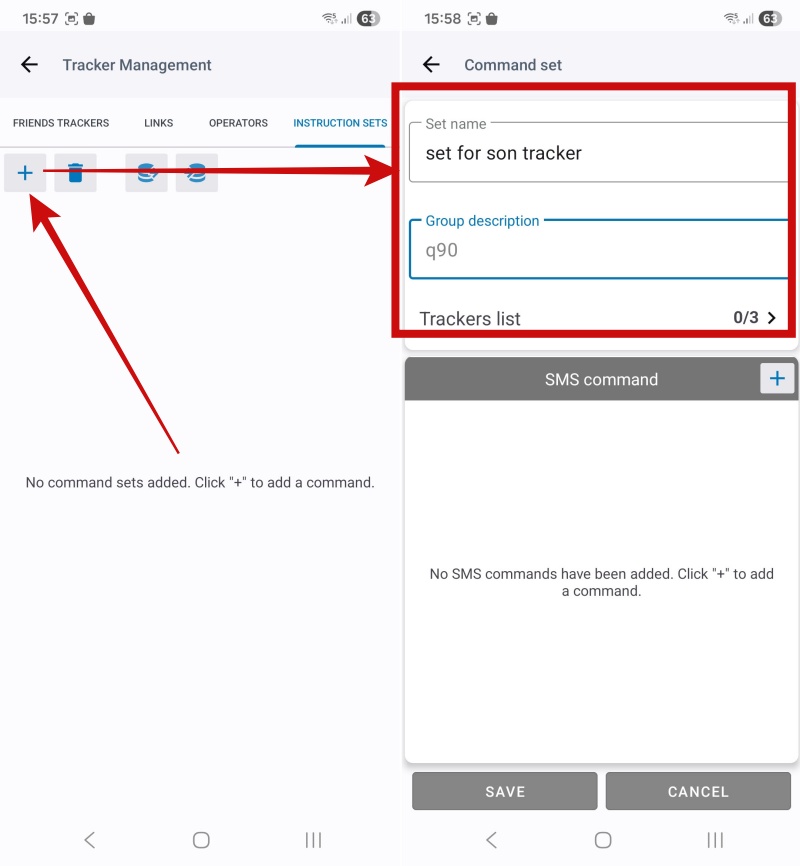
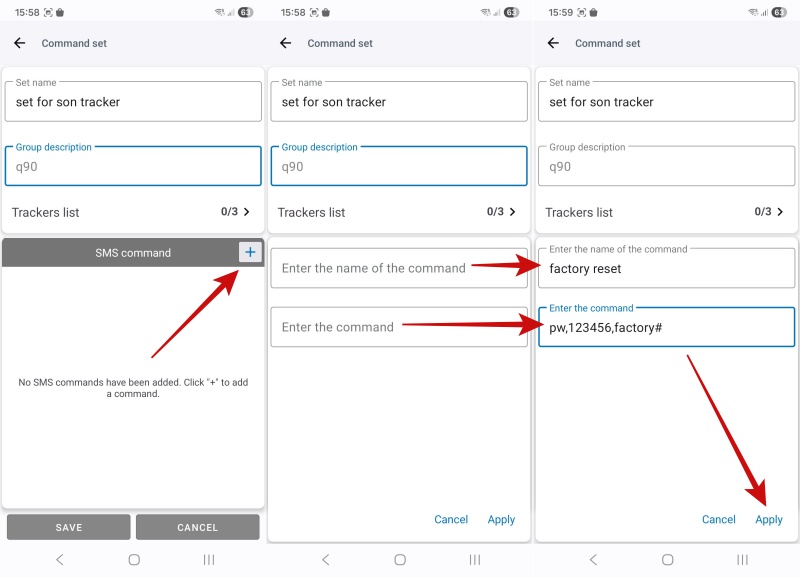
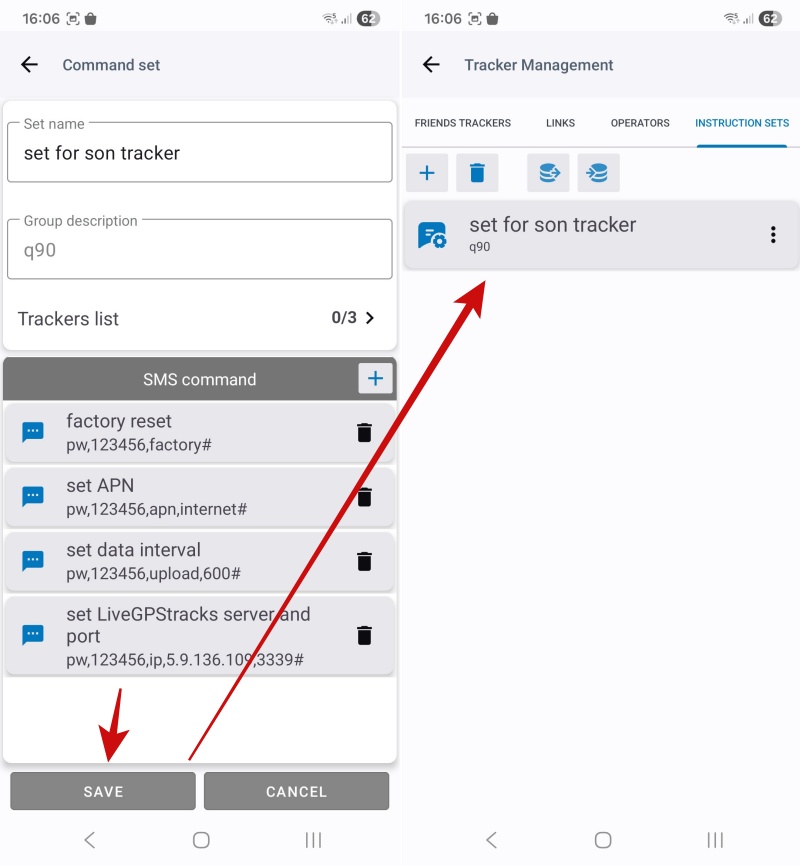
How to edit
- To edit a set — just open it
- To edit a command — tap on it
You can:
- change names
- edit command text
- add or delete commands
Don’t forget to save your changes.
How to delete
- Delete a set - via “⋯” → Delete
- Delete a command - using the trash icon inside the set
How to send commands
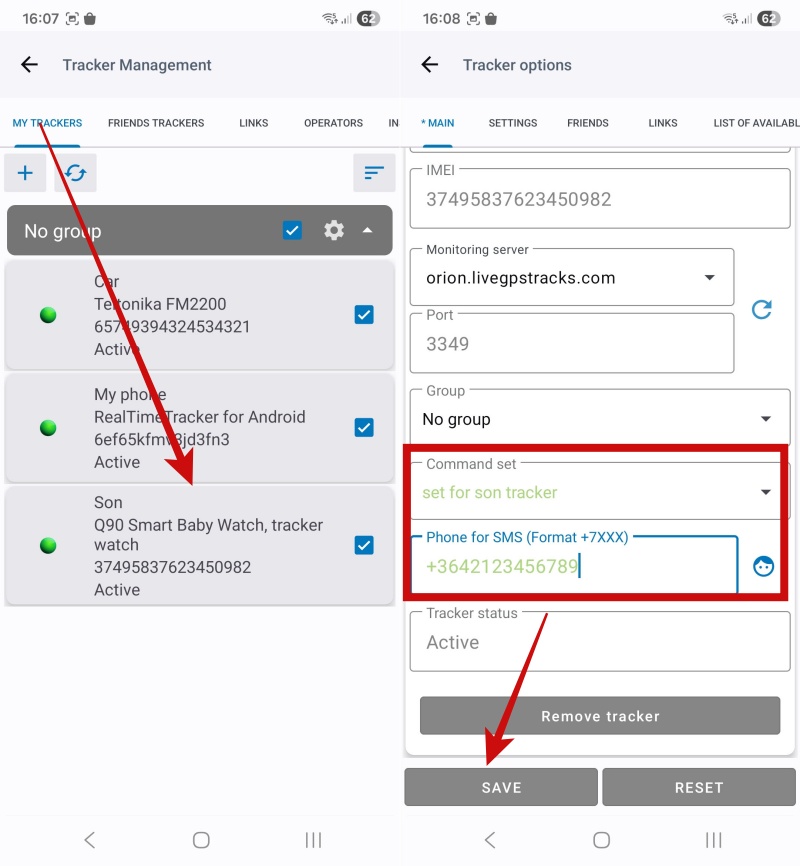
Important: creating a set does not automatically link it to a tracker - you need to assign it.
Here’s how:
- Open the tracker in Tracker Management
- Set:
- Command Set
- SMS Phone Number (the SIM card inside the tracker)
- Save changes
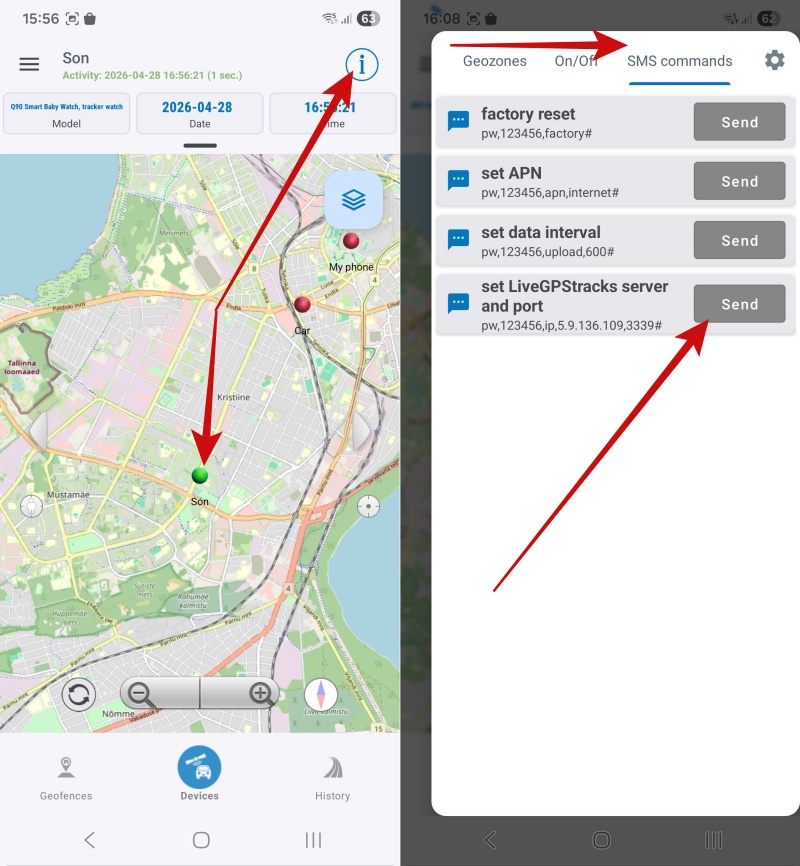
After that:
- open the tracker on the map
- find the SMS Commands section
- tap Send
Your default SMS app will open with the number and message already filled in - just send it.
Important
- SMS messages are sent directly from your phone
- They are charged according to your mobile operator’s tariff.
- The tracking service is not involved in sending SMS messages